

Field rules
In the object editor, add one field rule per phone field. Each rule controls validation, optional formatting, enrichment targets, and save behavior for that field.
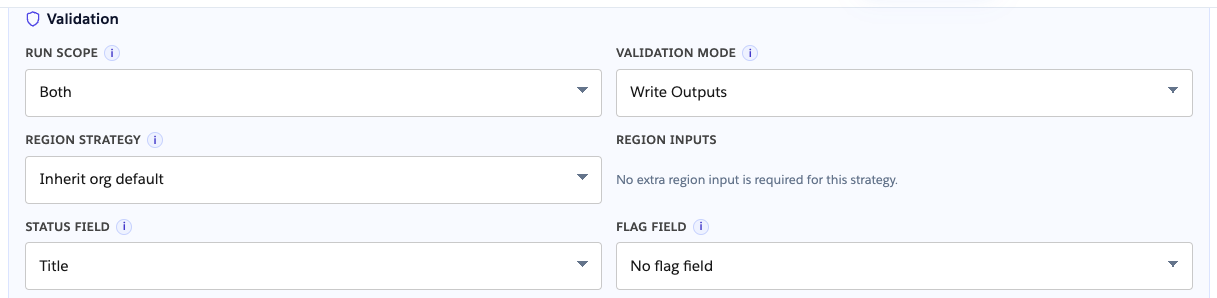
Validation
Section titled “Validation”| Setting | Purpose |
|---|---|
| Run scope | Create, Update, or Both |
| Validation mode | Write outputs or Block save |
| Region strategy | Inherit org default, fixed country, country field, or none |
| Status field | Stores Valid / Invalid / Needs region |
| Flag field | Optional checkbox (Needs region writes false) |
Write outputs
Section titled “Write outputs”Write outputs lets the save proceed and writes validation results to mapped fields. Use Status field for library statuses (VALID, INVALID, NEEDS_REGION, EMPTY). Optionally map Flag field for a true/false valid indicator (NEEDS_REGION writes false to the flag). At least one output target is required.
Block save
Section titled “Block save”Block save rejects the save when validation fails for this field.

Country from another field
Section titled “Country from another field”Region strategy = Country field: use a record field with ISO country code (for example Mailing Country Code).

Formatting
Section titled “Formatting”Enable Formatting to overwrite the phone field on valid parse. Save format overrides the org default when set.

Enrichment
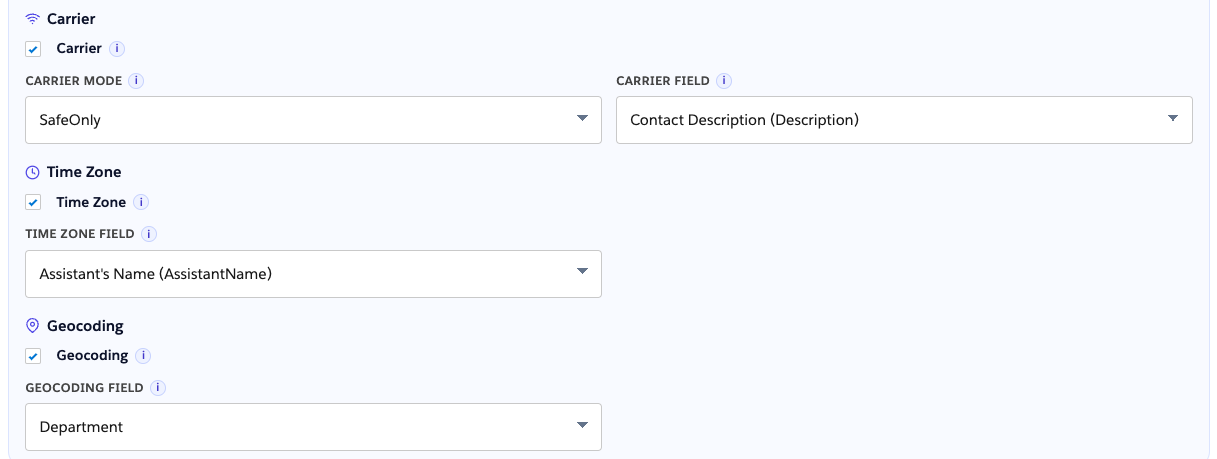
Section titled “Enrichment”Map optional carrier, geocoding, and time zone fields. Failed or cleared source values clear enrichment targets per product overwrite rules.
Output field conflicts
Section titled “Output field conflicts”NumberForge Configuration blocks two rules from mapping the same status, flag, or enrichment field.
Remove a field rule
Section titled “Remove a field rule”In the object editor, Remove on a field rule drops that rule from the draft immediately. There is no confirmation dialog. Click Save Object to persist the change (and redeploy automation if Automation owner is NumberForge).

Create fields from setup
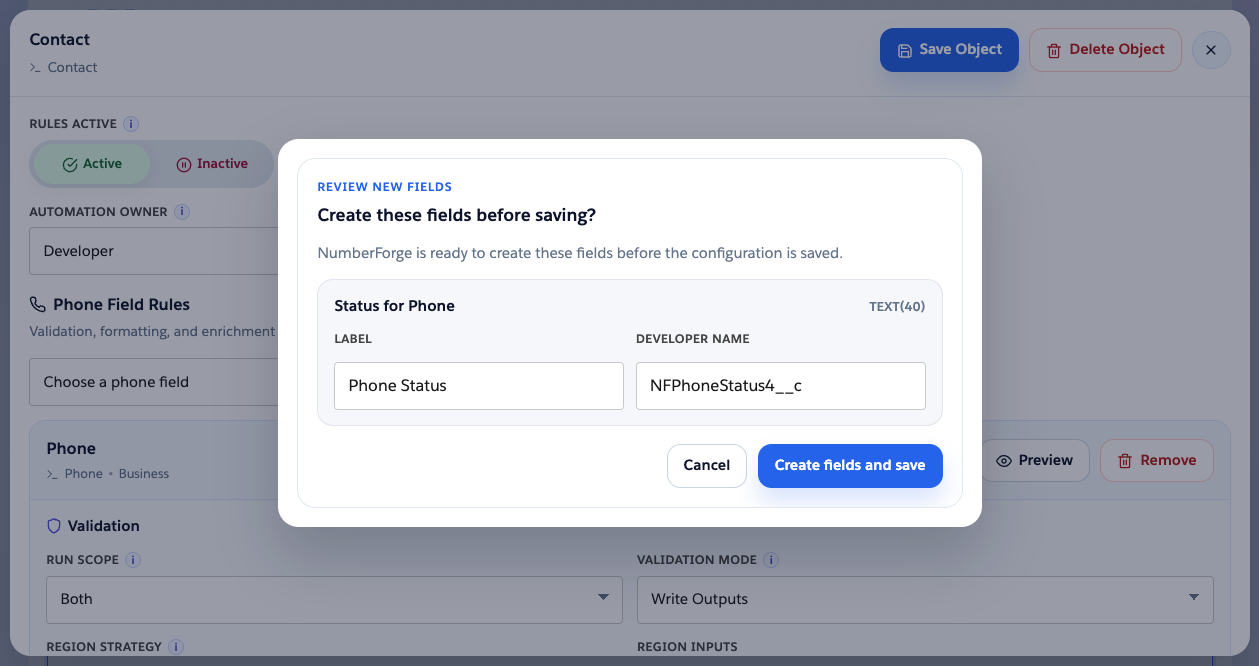
Section titled “Create fields from setup”Create target fields (status, flag, carrier, and so on) from the field rule editor instead of Setup. Requires metadata auth and NumberForge Product Admin.
- Open the target dropdown (status, flag, or enrichment field).
- Create new field.
- Review label and API name; confirm.
- On failure, the rule is not partially saved.

| Output | Type |
|---|---|
| Status | Text |
| Flag | Checkbox |
| Carrier / geocoding / time zone | Text |
NumberForge creates the custom field only. It does not set field-level security and does not add the field to page layouts. Automation still writes the value on save. To show the field on the record page, grant FLS to the profiles that should see it and add the field to the layouts you use.
On auth or naming errors, fix the dialog or re-validate metadata access.
Person Accounts
Section titled “Person Accounts”With Person Accounts enabled, Account configuration shows two field groups:
- Business account: Phone, Fax, and similar
- Person account: Person Mobile, Person Home Phone, and similar
Only the matching group runs for each record type.
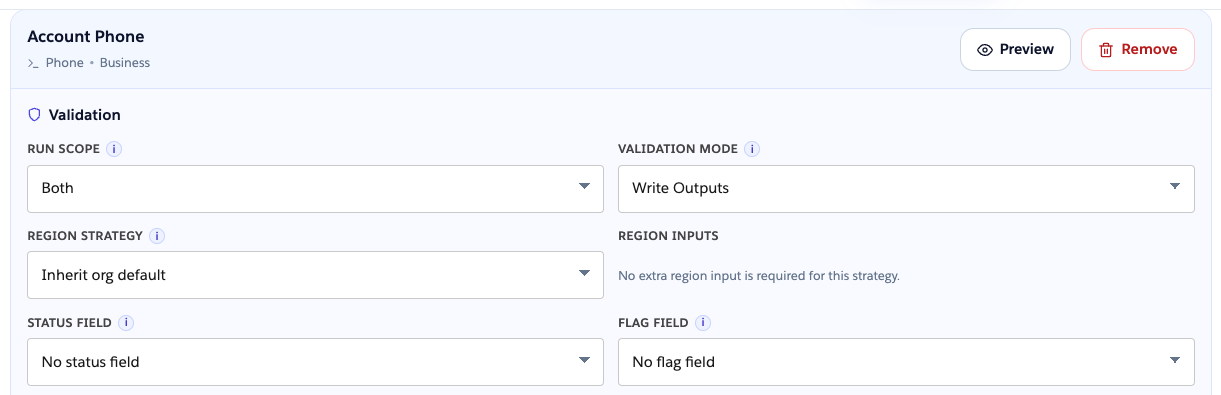
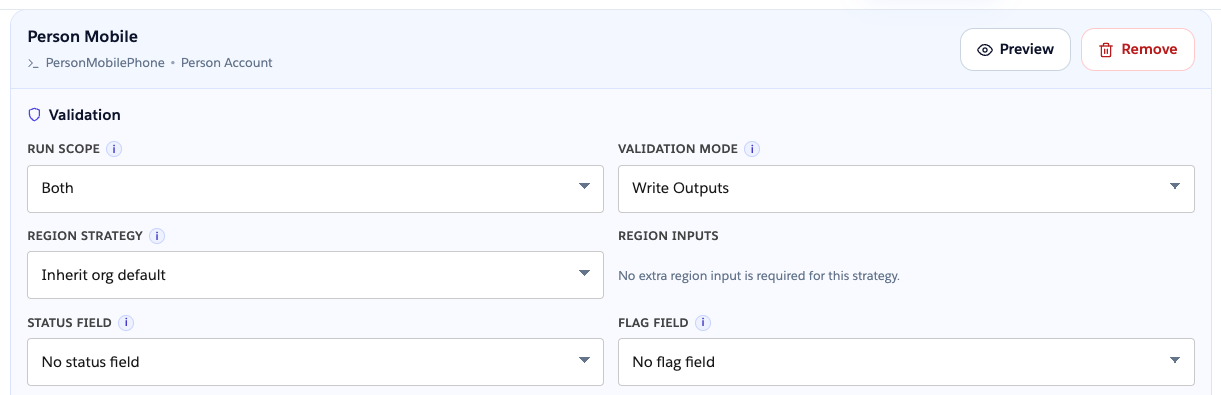
Phone Assistant on Account follows the same split (business vs person fields at runtime).
Without Person Accounts, only business Account phone fields appear in setup.