

Metadata auth (one-time)
After installing the NumberForge managed package, an admin must complete two quick manual steps before NumberForge Configuration can create generated fields or deploy NF-managed automation. There is no in-app button for the OAuth policy work; that is normal Salesforce Setup.
Assign NumberForge Product Admin first if you have not already (Install & permissions).
Enable Client Credentials on the packaged External Client App
Section titled “Enable Client Credentials on the packaged External Client App”The package installs an associated External Client App for metadata API access. Client Credentials must be turned on once per org on its OAuth policy.
Setup → search External Client Apps → External Client App Manager → open NumberForge Metadata Auth (developer name NF_MetadataAuth, namespace nforge).
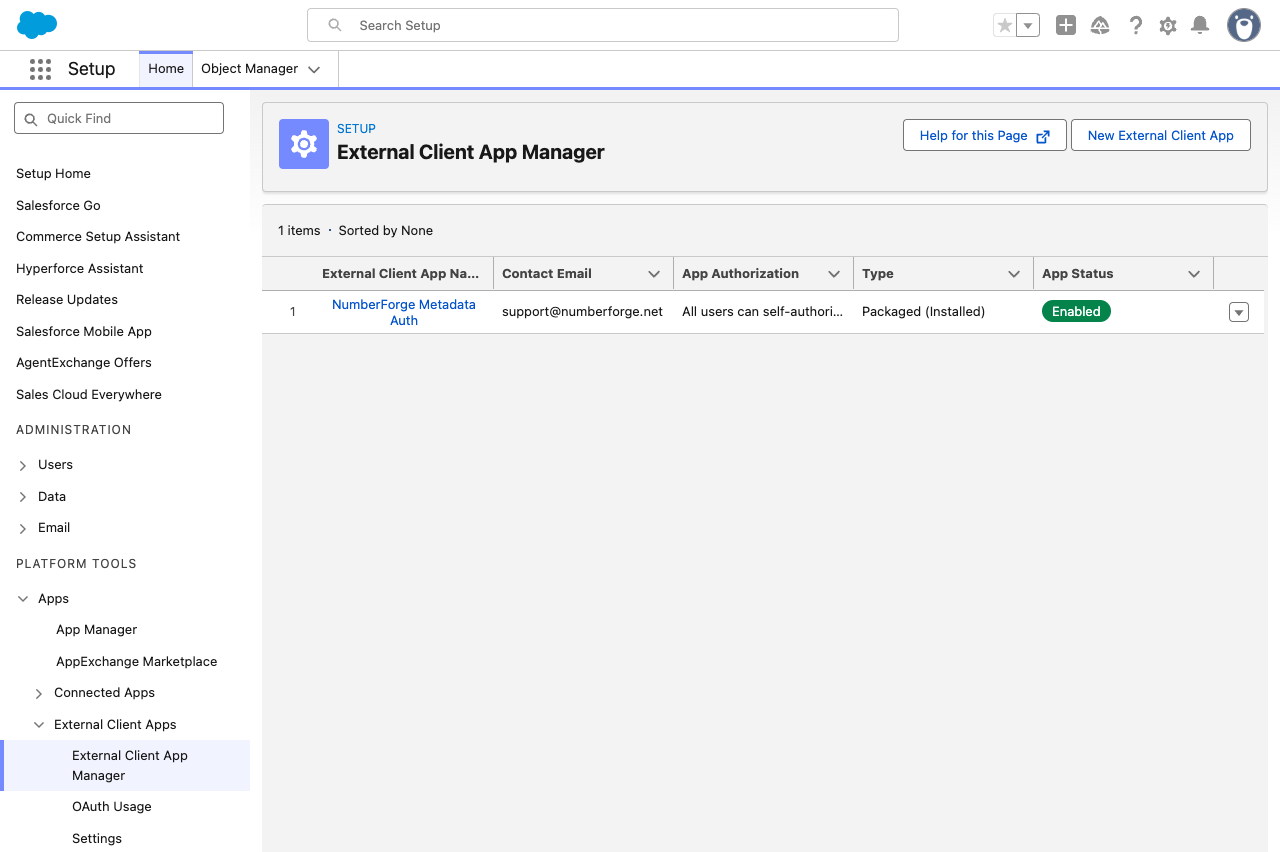
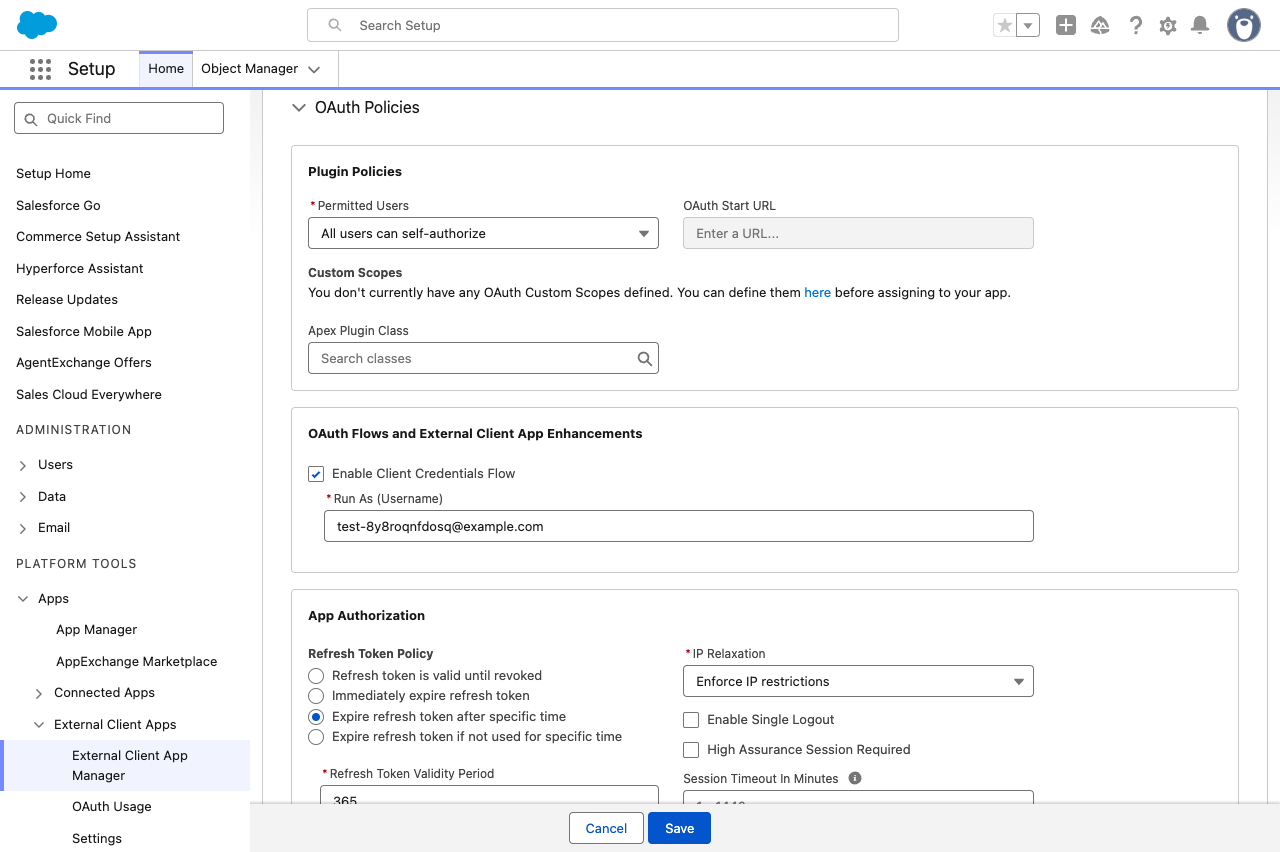
On the app detail page, open the Policies tab → expand OAuth Policies → Edit. Set:
- Enable Client Credentials Flow → checked
- Run As (Username) → the same admin user from the permission set step (must be able to run metadata operations)
Save.
Validate in NumberForge Configuration
Section titled “Validate in NumberForge Configuration”Open the NumberForge app → NumberForge Configuration tab → Validate metadata auth.
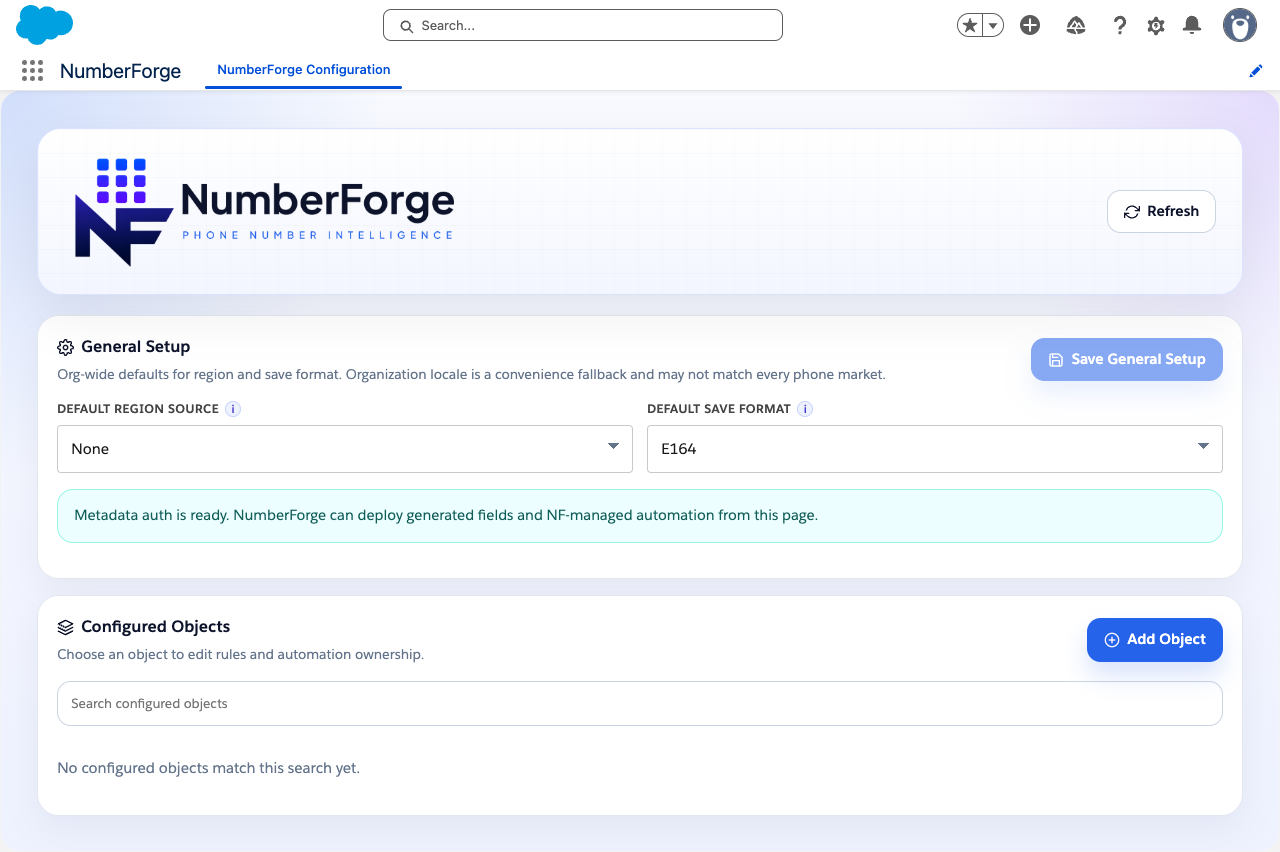
When validation succeeds, metadata auth is ready. No further subscriber action is required unless the package is reinstalled or the run-as user changes.
What the package does automatically
Section titled “What the package does automatically”The package ships publisher OAuth credentials in a PackageProtected protected custom metadata record (NF_MetadataAuthSecret__mdt, record Default). Subscribers never paste credentials and cannot read those values in Setup, SOQL, or the Metadata API.